You've Exceeded the Number of Attempts Twitter: Quick Fix
Author:

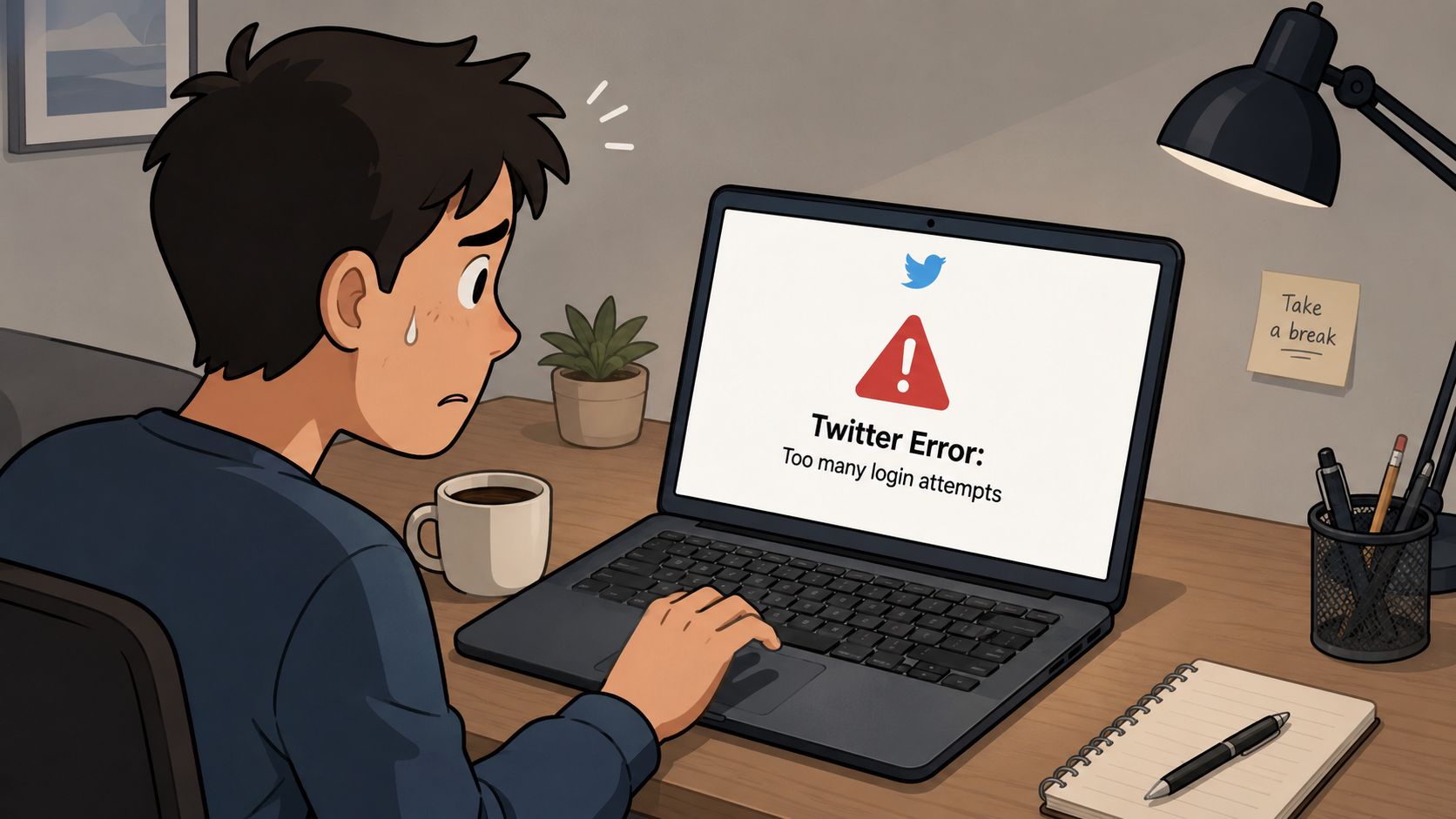
You've exceeded the number of attempts on X usually means a temporary lockout, and it typically clears itself in about one hour. If you keep trying during that window, you can keep the lockout alive longer than it needs to be.
That's the frustrating part. You're often sitting there with a correct password in one tab, a phone number verification prompt in another, and the app keeps throwing the same message back at you. I've seen this happen when people are moving too fast across devices, retrying verification codes, or leaving old sessions open on a laptop and a phone at the same time. The fix is usually calmer than the panic suggests, but only if you identify which X limit you hit.

Table of Contents
Why the Exceeded Attempts Error Happens on X
The message appears because X uses time-based rate controls to protect accounts and keep repeated requests from overwhelming the system. X's help center says that after a limited number of failed sign-in attempts, accounts are temporarily locked out, and that lock usually lasts about one hour before ending automatically. That makes this error a security throttle, not a permanent ban, and it explains why the same problem often disappears once you stop feeding it more failed attempts.
Historically, this logic is not new. Twitter's official blog described rate limiting as an hour-based control as far back as 2008, when it was used to manage how often the API could be used, including by third-party apps like TweetDeck. The mechanism has changed shape over the years, but the basic idea hasn't. The platform caps repeated actions in a fixed time window, whether the action is a login attempt or an app request.
The two triggers people confuse
The most common trigger is simple human error. A mistyped password, an expired session on another device, or repeated verification code requests can all push the account into a lockout state. Once that happens, the server is doing the blocking, so browser switching and cache clearing won't solve the root issue.
A second trigger comes from tool-heavy workflows. When a creator, assistant, or social media manager has X open on multiple devices, an old session can keep trying in the background while a third-party tool is also retrying. That creates the exact situation X is trying to slow down.
Practical rule: if the message shows up while you're signing in or verifying identity, treat it like a login lockout first. If it shows up inside an app making lots of requests, treat it like a request cap.
For teams that also automate outreach or engagement, the boundary matters even more. A bot-heavy workflow can create noise that looks like a login problem when it's really an account-control problem. If that's your environment, reviewing how aggressive automation can trigger unwanted attention is a smart place to start.
What to Do Immediately When You See the Error
The first move is boring, and it's the right one. Stop trying to log in. Every fresh attempt can keep the lockout active, which is why so many people turn a one-hour problem into a longer one by panic-clicking the same button over and over.
Next, close X on every device you're using. That includes the browser on your laptop, the app on your phone, and any social management tool that might still be polling the account. If you've got synced browser profiles or desktop notifications enabled, shut those down too, because background retries are easy to miss.
Lock the clock, not the browser
Record the exact time the error first appeared. That gives you a real start point for the about one hour recovery window the X help page describes, and it keeps you from guessing. If you started seeing the error at 2:10 p.m., don't start testing again at 2:40 p.m. and call it a failed fix.
What doesn't help at this stage is equally important. Clearing cache, swapping browsers, or opening an incognito window won't remove a server-side lockout. Those tactics can be useful for unrelated browser issues, but they won't override a limit that X is enforcing on its side.
Don't keep requesting verification codes every few minutes. That usually feeds the lockout instead of easing it.
If you want a concise outside reference for the recovery logic, the guide on how to fix login lockout is a useful companion read because it follows the same practical principle, stop retrying and let the lock expire.
The help path on the X side is also straightforward once you stop the retries. If the account is blocked by the attempt limit, the next clean step is to wait it out and then re-enter credentials once, in one session. For support navigation while you're waiting, keep X's support home bookmarked so you're not scrambling later.
Proven Recovery Methods to Regain Access
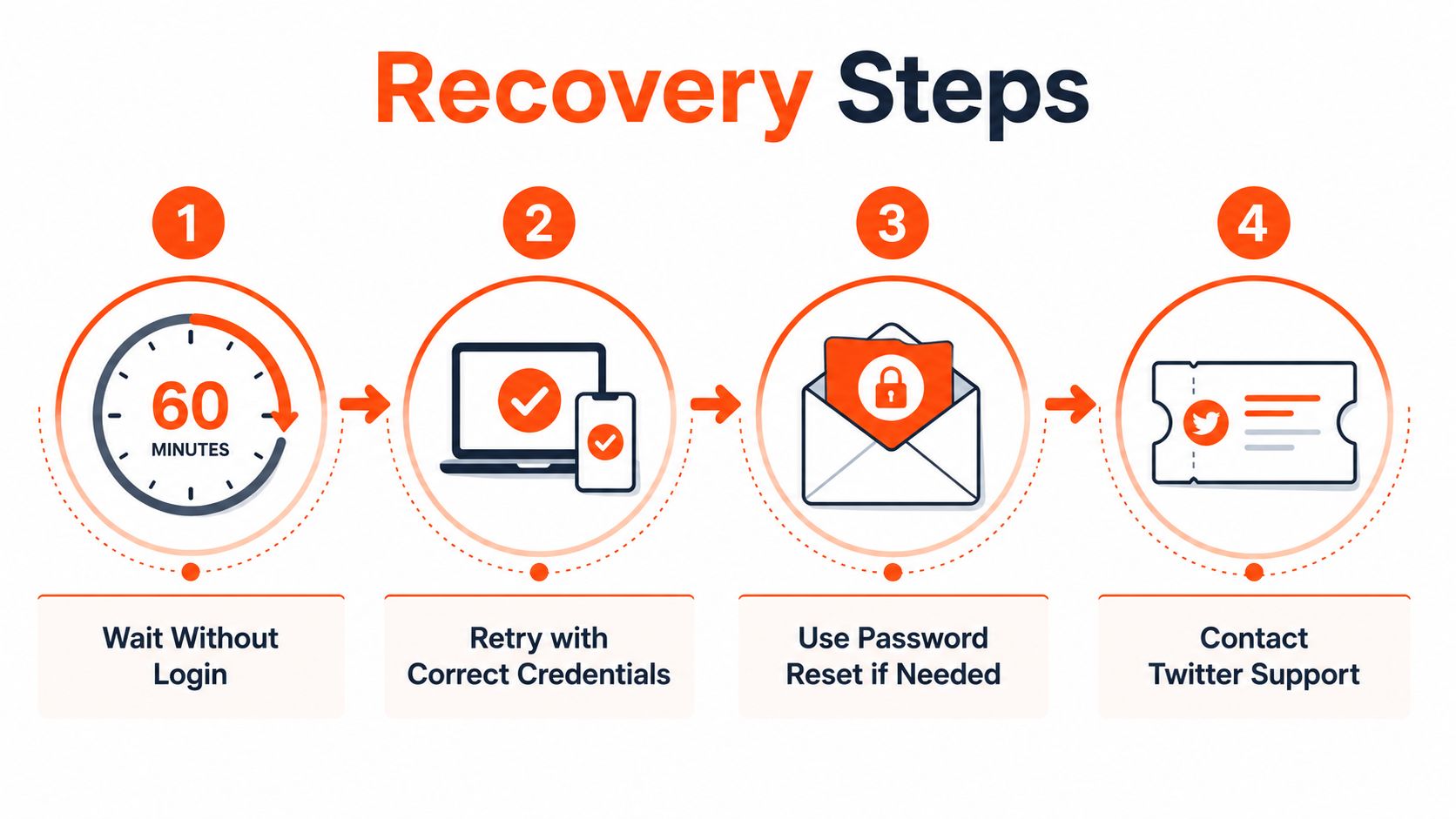
The fastest clean recovery is usually patience. X's own help language points to a lockout that lasts about one hour, so the safest move is to wait the full period without logging in anywhere, then try once from a single device with the correct credentials. If you've been hammering the app, a clean retry after the window is often enough.
Use the password reset path when waiting isn't enough
If you can't afford to sit on your hands or you're not sure the password is right, use Forgot password. A troubleshooting source describes a flow where X can send a verification code after you enter a phone number, username, or email, which can move you out of the failed sign-in loop and into a cleaner recovery path. In real client work, this is the move that saves the day when someone has exhausted the login screen but still has access to the recovery inbox.
That matters because password resets are not the same as another login try. A reset flow can often bypass the repeated failed-attempt pattern that triggered the lock in the first place. If the account owner has multiple recovery methods on file, this is usually the least chaotic option.
Use phone verification carefully
X's help content also notes that users can restore access by verifying a phone number or email address when prompted. The trick is to avoid repeated code requests. One fresh request is useful, three in a row is how people accidentally make the situation noisier.
A practical example is a founder who gets locked out while confirming a phone number for a fresh device login. In that case, switching to the password reset flow is often cleaner than burning more codes. It keeps the process moving instead of fighting the timer.
If the normal recovery paths fail and the lockout keeps recurring, contact X support and include the exact error text, the approximate time it started, and whether you were logging in, verifying a phone number, or using a third-party client. The more clearly you describe the trigger, the easier it is for support to separate an authentication issue from an app-request issue.
Login Lockout vs API Rate Limit
Most guides get sloppy here. A login lockout means you've hit the sign-in attempt limit. An API rate limit means an app, script, or connected workflow has made too many requests in a fixed window. They can feel similar, but the correct fix is different.
X's API documentation says modern rate limits are enforced in fixed windows, commonly 15 minutes for REST endpoints, and when the ceiling is reached, the API returns HTTP 429 or an equivalent rate-limit response. That is not the same problem as the login lockout described in the help center, which is about failed sign-ins and an about one hour hold. One needs patience at the account screen, the other needs the app to wait for the reset window.
Feature | Login Lockout | API Rate Limit |
|---|---|---|
Trigger | Repeated failed sign-ins or verification attempts | Too many app requests in a fixed window |
Typical window | About one hour | Commonly 15 minutes for modern endpoints |
Error style | “You've exceeded the number of attempts” style login prompt | “Rate limit exceeded” or HTTP 429 |
Best first move | Stop trying and wait | Stop requests and wait for reset |
Best recovery path | Password reset, phone or email verification, or support if needed | Endpoint-aware backoff and fewer retries |
How to tell which one you hit
The screen matters. If you're looking at a sign-in or verification form, you're probably dealing with a login lockout. If the failure shows up inside a connected app, reporting dashboard, or workflow tool, it's more likely a request cap.
The context matters too. A social manager using multiple dashboards, browser sessions, and publishing tools can trip app-level limits while also creating login confusion. That's why teams need to separate authentication failures from request throttling instead of treating every X error as one problem.
A useful planning lens is to think in terms of the workflow, not just the account. If a scheduler keeps polling too often or if parallel retries are happening across tools, you're in app-limit territory. For teams building those workflows, the guide on social media marketing automation is the right companion because it helps you think about request volume before it turns into a lockout or a limit hit.
If the wording says attempts, start with sign-in recovery. If the wording says rate limit, stop the app behavior first.
That distinction saves hours. It also prevents the classic mistake of clearing browser data while the issue is a request cap somewhere else entirely.
Preventing Future Lockouts as a Creator or Manager
The best prevention is operational, not dramatic. Use a password manager so you're not typing credentials from memory, because mistyped logins are still one of the easiest ways to trigger the attempt limit. If your team shares access, make sure everyone knows which credentials are current and which sessions are still active.
Session hygiene matters more than people think. When one person logs in on a desktop, then signs in again on a phone, then tests a third-party tool, you can end up with overlapping retries and stale sessions that keep poking the account. A quick monthly habit of logging out old devices and checking which sessions are still live can cut down on accidental lockouts.
Keep recovery paths open before you need them
Verify your phone number and email address on the account while everything is working. If the lockout does happen, those recovery methods need to be available already. People often remember to update them only after they're locked out, which is the worst possible time to discover the account is missing a usable recovery route.
For scheduling tools and connected apps, don't fire off parallel retries. Stagger requests, reduce polling, and let the app wait for the reset interval when X starts pushing back. That same discipline protects your publishing workflow from turning a temporary issue into a content calendar mess.
A clean pre-posting check beats a frantic recovery session later.
Before a batch goes live, open the active X session you plan to use, confirm the account is signed in, and verify that no old browser profile or duplicate app session is still active. That habit is especially useful for creators who post from multiple cities, devices, or contractors.
The long-term payoff is consistency. If you want a tool-centric way to keep your posting rhythm steady while avoiding unnecessary login churn, social media growth tool workflows are worth studying because they're built around reducing friction before it becomes a support problem.
Your Quick Reference Action Plan
If X says you've exceeded the number of attempts, do this in order. First, identify whether you're looking at a login lockout or an API rate limit. Second, stop all retries immediately, because more attempts usually extend the problem. Third, wait the right window, about one hour for login lockouts, or the relevant reset period for API limits.
If the wait feels too long, switch to the cleanest recovery path available. Use Forgot password if you still have access to recovery email or phone, then try phone or email verification only once, not in a loop. If the issue keeps recurring, contact support with the exact message and the context of how it happened.
The broader rule is simple. Protect your login session, keep recovery details current, and don't let multiple tools hammer the same account at the same time. That's how experienced creators keep a temporary X lockout from turning into a lost posting day.
SupaBird helps creators, founders, and social media managers keep publishing even when login friction gets in the way, because scheduled content doesn't depend on you sitting at the screen in real time. If you want a calmer posting system that's built for consistency, visit SupaBird and see how it can support your X workflow.

The Reply Guy Strategy: A Growth Guide for X

Why New X Accounts Get Less Reach

ClimbX Review (2026): Features, Pricing, Pros and Cons

How Developer Startups Build a Brand on X Before Launch

30-Day Starting Plan for New X (Twitter) Accounts

How Often Should You Tweet for Maximum Growth?

What Should Your First 10 Tweets Be About?

How to Run X for Ten Clients: The Agency Workflow

How to write a bio that gets people to follow you
