How to Post Video to Twitter and X in 2026
Author:

Most guides about video to Twitter treat the upload button as the hard part. It isn't. X accepts common video formats, processes the file, and gives you a publish path from mobile or desktop. The difficult part starts after the file clears the composer, when a silent autoplay preview has to stop a scrolling viewer, hold attention, and earn a completion.
That changes the workflow. You're not posting a file. You're publishing a small, self-contained piece of programming with a hook, visual context, captions, pacing, and a measurable outcome. The export matters, but retention and completion matter more than technical compliance once the video enters the feed.
Table of Contents
Video Specs and Export Settings That Survive the X Transcode
Turning One Long Video Into Multiple X Clips That Earn Reach
Reading X Video Analytics to Know If Your Clip Actually Worked
Fixing Common Upload Errors When the Video Just Will Not Post
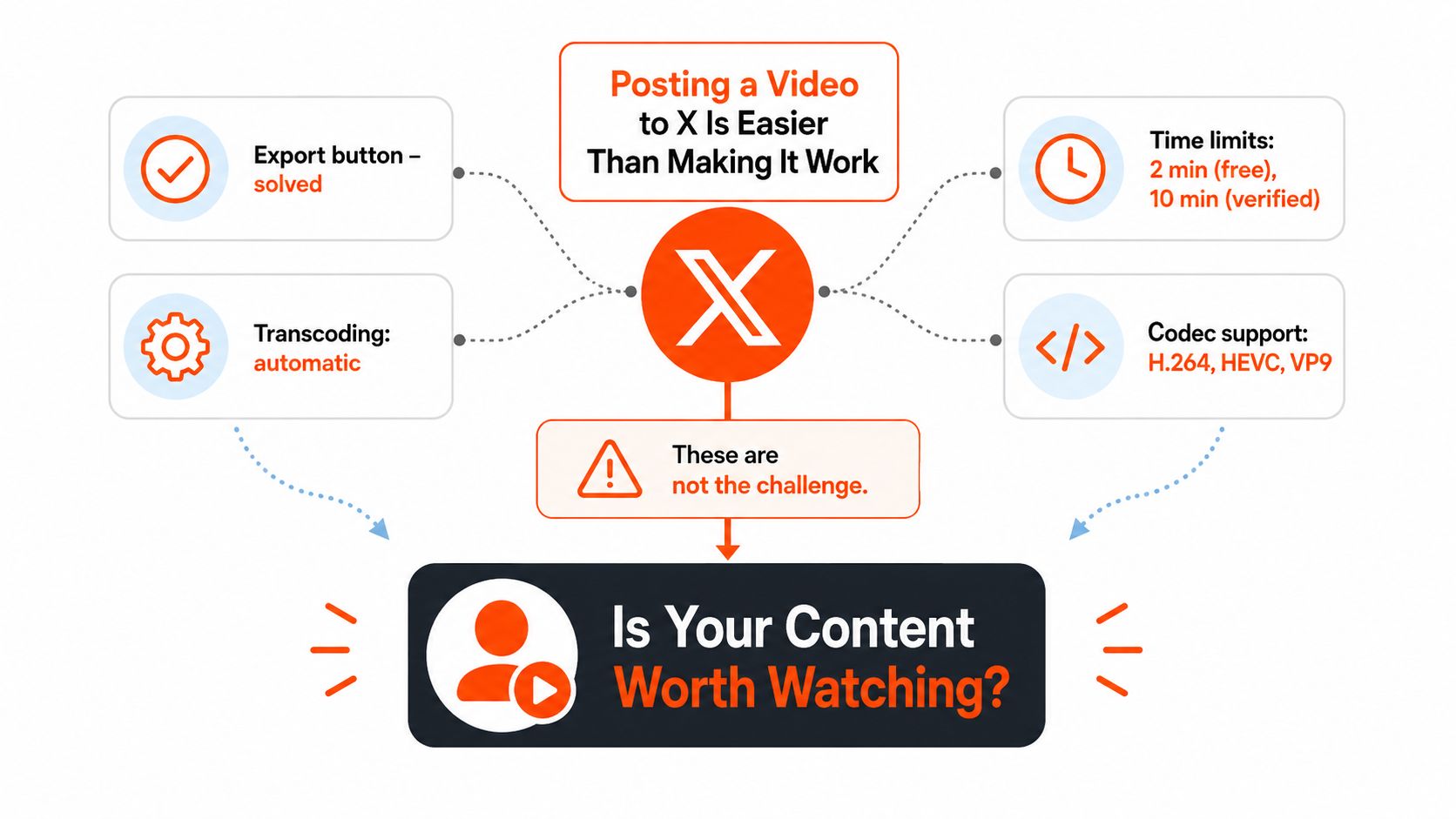
Why Posting a Video to X Is Easier Than Making It Work
The popular advice says to focus on resolution, bitrate, and upload limits. Those details can prevent a failed post, but they won't rescue a dull opening. X's own analytics define a view as a video watched for 2 seconds at 50% of the frame, or expanded or unmuted, and its reporting includes retention, view rate, completion rate, and playback milestones rather than raw views alone (X's video analytics guidance).
That's the distinction between “posted” and “working.” A technically perfect interview clip can disappear if the first frame shows a speaker settling into a chair. A slightly less polished edit can travel further if it opens with the sharpest claim, makes sense without audio, and reaches its payoff before the viewer has a reason to scroll.
Treat the clip as the product
The old Twitter workflow depended heavily on external video tools and a separate Vine product, which was built around six-second looping clips. On January 27, 2015, Twitter introduced native mobile video sharing, allowing users to capture, edit, and publish clips inside the app, with videos of up to 30 seconds at launch and camera-roll uploads for iPhone users (CNBC's launch coverage).
That launch removed friction, but lower friction also created more competition. By March 2019, Twitter reported about 1.2 billion video views per day, video tweets receiving 10x more engagement than posts without video, and promoted video tweets producing more than 50% lower cost per engagement (Social Media Today's report). Those historical figures show why native video became central to the platform, but they don't mean every upload earns attention.
Use your broader social media content strategy to decide what the clip should accomplish, then make the clip understandable on its own. Before exporting, ask:
What happens in the opening frame? Start with the claim, conflict, result, or visual change.
What does a muted viewer understand? Burn in the essential context instead of relying on spoken setup.
Where is the payoff? Cut introductions and pauses that delay the useful moment.
What should the viewer do next? Give the closing line a clear reply, follow, or click reason.
A 34-second edit can outperform a longer source file when it preserves attention from the first second through the final idea. Don't confuse a larger file with a stronger post. The upload is step zero. The editorial decision is the work.
Video Specs and Export Settings That Survive the X Transcode
X will process your upload, so your export should give its transcoder a clean source instead of making it repair an unusual encode. For a dependable creator preset, use an MP4 container, H.264 video, and AAC LC audio. X documents horizontal 1280×720, square 720×720, and vertical 720×1280 as standard best-practice envelopes, with 30 FPS or 60 FPS, a minimum video bitrate of 5,000 kbps, a minimum audio bitrate of 128 kbps, and AAC LC audio (X's media best practices).
Premium subscribers can upload 1080p and receive 1080p playback, while non-subscribers are limited to 720p playback. That account-tier difference matters more than exporting a huge master, because X can still downscale playback when the account or duration rules require it.
Copyable export settings
Setting | Standard Account | Premium Account |
|---|---|---|
Recommended container | MP4 | MP4 |
Video codec | H.264 | H.264 |
Audio codec | AAC LC | AAC LC |
Practical frame rate | 30 FPS, or 60 FPS when motion needs it | 30 FPS, or 60 FPS when motion needs it |
Minimum video bitrate | 5,000 kbps | 5,000 kbps |
Minimum audio bitrate | 128 kbps | 128 kbps |
Playback ceiling | 720p | 1080p available |
Standard upload limit | 140 seconds and 512 MB | Premium limits apply |
For most social clips, export at the platform's supported dimensions rather than uploading a cinema master. Horizontal suits demonstrations, interviews, and desktop viewing. Square gives a balanced feed presentation. Portrait uses the available mobile screen more aggressively. Keep the pixel aspect ratio at 1:1, use Rec.709 color, and avoid interlacing.
The documented standard-account ceiling is 140 seconds and 512 MB. Premium long-video support can extend to multi-hour uploads, with documented operating constraints including 720p above 2 hours and file sizes up to 16 GB (X's Premium longer-video help page). For ordinary feed clips, staying at or below 2 minutes 20 seconds keeps the edit compatible with standard accounts. This guide to how long a Twitter video can be is useful when you're planning a series rather than a single post.
Choose MP4 when you want a widely supported delivery file. A practical container format comparison for creators can help if your editing software defaults to MOV. The goal isn't to preserve every source pixel. It's to give X a compatible file with enough bitrate to survive one controlled transcode.
Uploading From Mobile, Web, and SupaBird Step by Step
The same video can look different depending on where you upload it. Mobile is convenient, web is easier to inspect, and a scheduling workflow is useful when you're managing variations. Pick the path based on the job, not habit.
Mobile upload
On iOS or Android:
Open X and tap the compose button.
Choose Media and select the edited clip.
Trim it only if the source exceeds your planned duration.
Add the post text, captions, and a thumbnail if the composer offers the option.
Preview the first frame with sound off.
Publish only after checking that text and faces aren't hidden by the interface.
The mobile editor is useful for a quick trim, but it can introduce another compression pass. If the app produces soft detail, export from your editor at the higher end of your approved bitrate range and avoid repeatedly saving the same file through multiple apps.
Web upload
On desktop, open the compose window, click the media icon, and drag the file from Finder or File Explorer. The web workflow gives you more room to inspect the file and choose a frame that represents the actual promise of the clip. It's also a better choice for reviewing a batch of exports before publication.
Don't upload a file because the browser accepts it. Confirm that the duration, size, codec, dimensions, and audio track match your preset. If the source is long-form, a service designed to convert long video to short clips can help you create candidates, but you still need to review every opening and ending yourself.
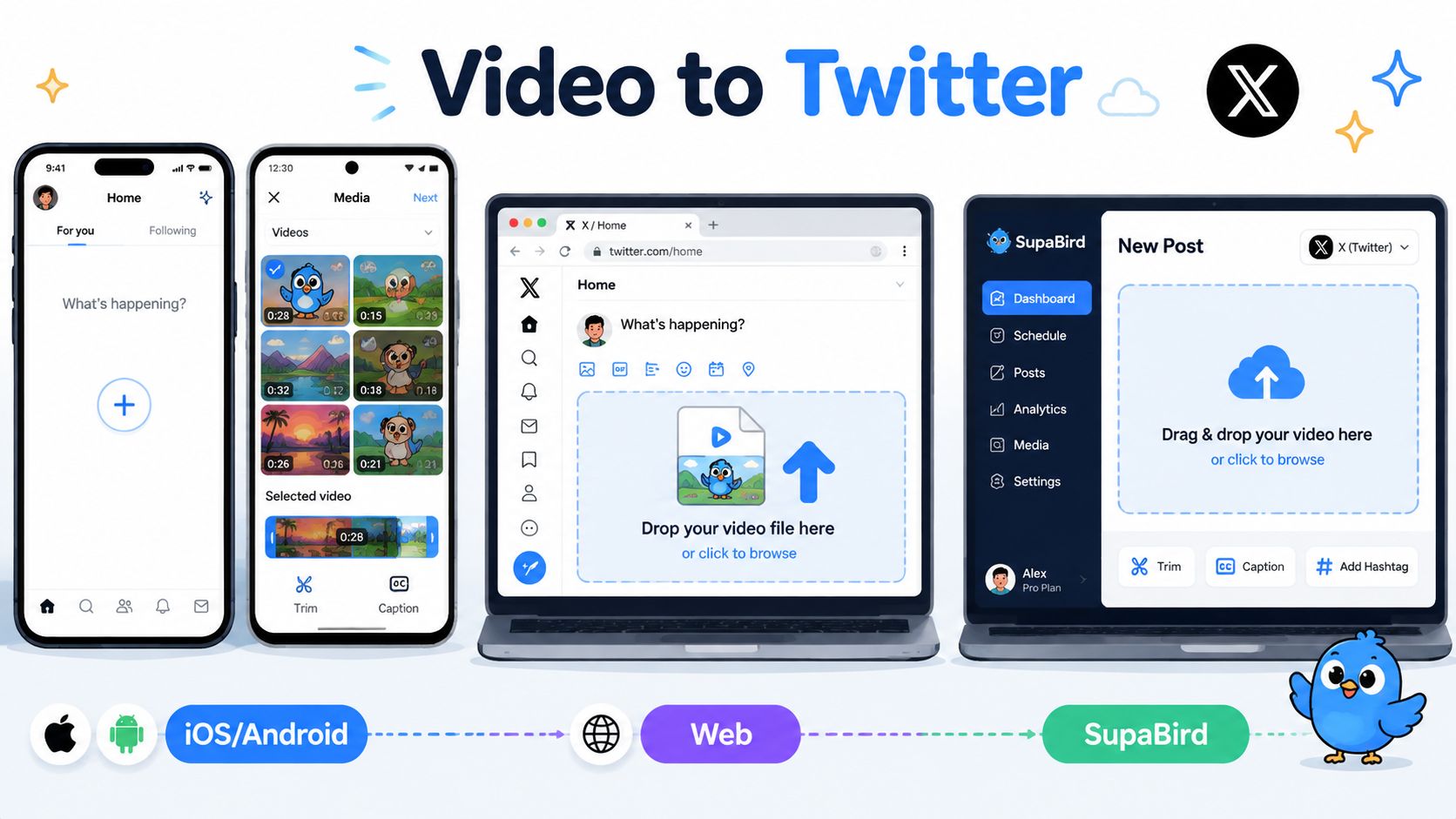
Scheduled publishing
A scheduling layer adds consistency, but it also adds a quality-control step. In SupaBird, you can import the source, queue variations, attach X-GPT hooks to the first line, and schedule a post for a target city's publishing window. Its library workflow for organizing X assets is documented in how to manage X content in SupaBird My Library.
The trade-off is simple. Native posting removes an intermediary. A scheduler makes repeatable publishing easier, but you must confirm that the final rendered file, caption, thumbnail, and post copy all survived the handoff. Always preview the scheduled version before it goes live.
Turning One Long Video Into Multiple X Clips That Earn Reach
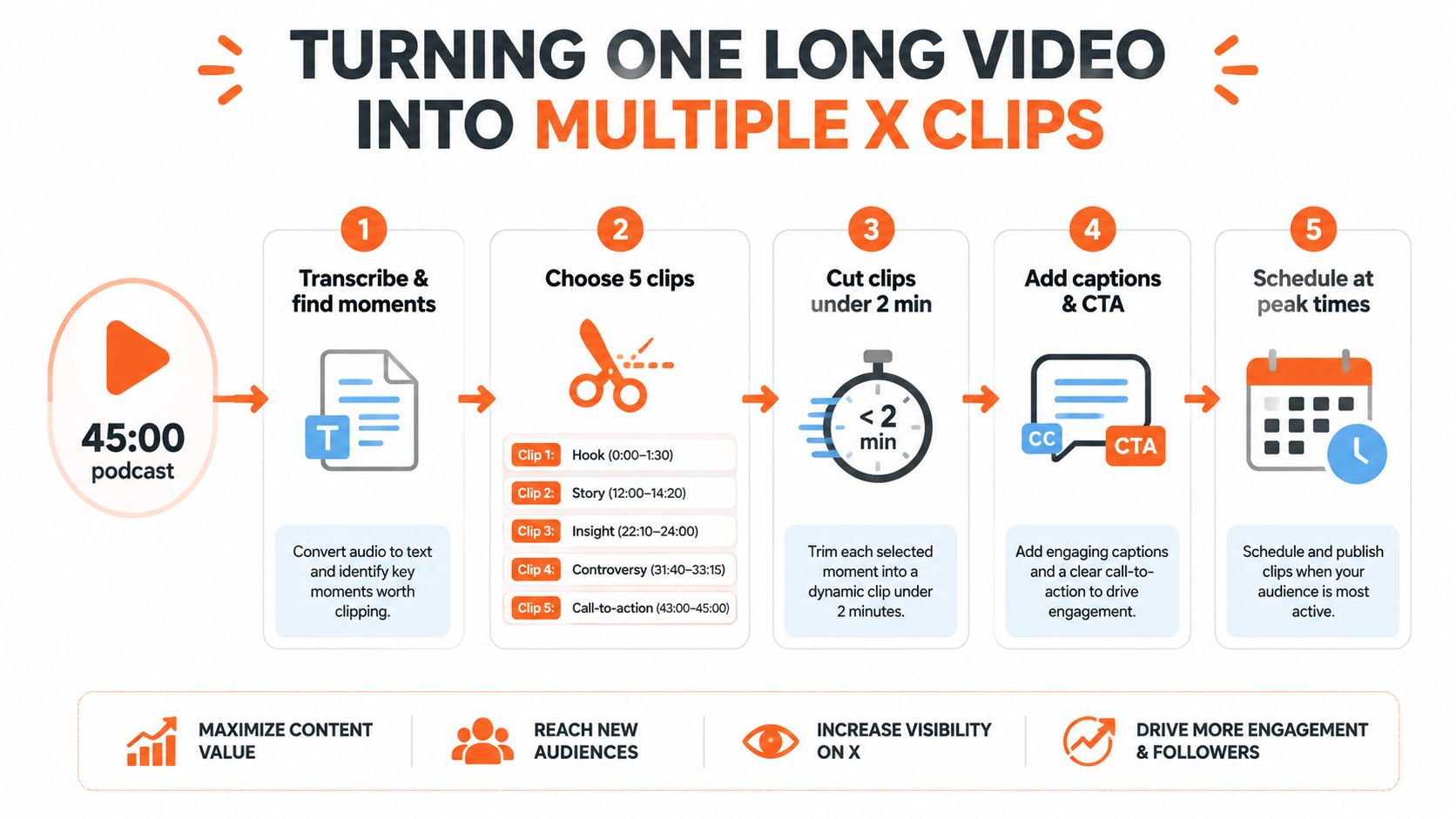
A 45-minute podcast episode usually contains several useful arguments, but the full recording isn't automatically a useful X post. The editing job is to find moments that begin with enough tension to stand alone and end with a complete thought.
Start with the transcript. Mark claims, stories, disagreements, surprising explanations, and lines that could work as a post's first sentence. Then build a prep table before opening the timeline:
Clip | Source moment | Editorial role | Queue decision |
|---|---|---|---|
Clip 1 | Opening hook | Establishes the topic quickly | Post first |
Clip 2 | Story segment | Adds personal context | Publish as a follow-up |
Clip 3 | Practical insight | Delivers the clearest lesson | Use in the main sequence |
Clip 4 | Contrarian point | Invites discussion | Consider as a pinned reply |
Clip 5 | Strongest closing idea | Carries the best action or conclusion | Save for the peak window |
The exact source timestamps will depend on the recording, but every edit should fit the standard-account ceiling. A short clip is easier to reuse in a feed post, reply, or repost without requiring Premium, and practical guidance commonly recommends keeping exports under 2 minutes 20 seconds (BuzzVoice's length guide).
Make each cut cold-open ready
For Clip 1, remove the greeting and begin on the strongest statement. For Clip 2, enter just before the story turns, not at the first sentence of the story. Clip 3 should answer a practical question. Clip 4 can keep disagreement or tension, but it still needs enough context to avoid confusion. Clip 5 gets the strongest final idea and should not be wasted as an afterthought.
Use portrait framing when the speaker and captions need full-screen mobile attention. Use square when a balanced composition works better. Keep captions burned into the video when silent viewing is central, and use an SRT workflow when you need editable accessibility captions across exports.
A platform-specific transformer can turn each source segment into different post formats, including a single post, a thread, or a quote-style post. Tools such as an AI TikTok video creator tool can help generate short-form candidates, but the final X cut still needs a human editorial pass.
The first clip should be the clearest invitation into the subject. The fifth should be the strongest because it has earned the best queue position, not because every post must end with a generic call to action. A cut becomes a pinned reply when it adds context to the main post. It deserves paid distribution only when its organic retention and completion indicate that the edit already works without extra delivery.
Reading X Video Analytics to Know If Your Clip Actually Worked
Raw views are a starting signal, not a verdict. X's metrics documentation distinguishes public views from non-public playback counts at 0%, 25%, 50%, 75%, and 100%, while the analytics view also helps you examine how viewers move through the video (X's metrics documentation).
Read the post in four layers:
Impressions show how often X displayed the post. Low impressions can indicate weak distribution, limited initial response, or a narrow audience.
View rate shows how often viewers reached the platform's view definition. X counts a view after 2 seconds at 50% of the frame, or after expansion or unmuting (X's video analytics guidance).
Retention shows where attention falls away. A sharp early drop points to the opening, while a gradual decline often indicates pacing or length problems.
Completion rate shows whether viewers reached the end. Strong completion with little conversation usually means the closing prompt needs more specificity.
Use the graph as an editing diagnosis
If impressions are healthy but view rate is weak, inspect the first frame, thumbnail, and opening visual. If view rate is acceptable but retention collapses immediately, remove setup and place the central claim sooner. If viewers stay through the middle but leave before the payoff, shorten the route to the conclusion.
Don't create universal “healthy” percentage bands without a consistent account baseline. Audience, topic, source traffic, and clip length change the meaning of every rate. Compare videos against your own recent posts with similar objectives instead.
Metric | Healthy Range | Break Range | Most Likely Fix |
|---|---|---|---|
Impressions | Strong relative to comparable posts | Weak relative to comparable posts | Improve topic, post framing, and early distribution |
View rate | Higher than your comparable clips | Lower than your comparable clips | Replace the first frame and sharpen the opening |
Retention | Curve holds attention through the core idea | Steep early or mid-video drop | Cut setup, pauses, or unclear transitions |
Completion rate | Viewers regularly reach the payoff | Most viewers leave before the ending | Shorten the edit or move the payoff forward |
Review posts after enough time has passed for a fair comparison, then tag the pattern. A 14-day review ritual can group clips by topic, opening style, length, framing, and closing prompt. The next week's editorial plan should come from repeated patterns in those tags, not from the clip with the largest raw view count alone. For a broader workflow, Twitter analytics tools can help centralize comparisons.
Timing, Captions, and Thumbnails That Lift Completion
Timing, captions, and thumbnails work as one system. A strong hook posted when your audience is absent has less opportunity to earn early watch behavior, while a perfectly timed post can still lose the scroll if its preview frame looks empty or its spoken context disappears without sound.
Schedule for the audience you actually want
City-aware scheduling is more useful than choosing a universal “best time.” A founder selling to New York should not automatically publish for a London morning audience, and a creator with readers across several cities may need separate versions rather than one compromise slot.
Start by reviewing your own post history across a meaningful period, then mark the windows that repeatedly produce stronger early activity. Keep the test consistent. Compare similar topics and formats instead of treating a podcast clip and a product announcement as interchangeable.
A calendar can queue a week of posts around selected city windows, while X-GPT hooks can help draft alternate opening lines for the same clip. The tool doesn't replace judgment. You still need to reject hooks that promise a result the video doesn't deliver.
Caption for silent viewing
Captions should make the argument legible without covering the speaker's face. An SRT file uses sequential cue numbers, timecodes, and caption text. Keep each cue under 32 characters per line, use no more than two lines on screen, and split captions at natural pauses rather than mid-phrase.
Open captions are burned into the video and travel with the file. They're reliable when the post must communicate in a muted autoplay feed. Closed captions preserve viewer control and can be easier to revise, but they depend on the player exposing the track correctly.
Practical rule: If the viewer can't identify the subject and tension from the first caption, the video is asking for too much patience.
Choose a useful cover frame
Select a frame from the middle of the action, not a neutral pause. Increase contrast enough for a dark-mode preview, keep important faces and text away from interface overlays, and use a verbatim text overlay of fewer than six words. The overlay should name the tension, not summarize the entire video.
A clear first frame, readable captions, and an audience-aware publishing window reinforce one another. Remove one and completion can suffer even when the underlying conversation is strong.
Fixing Common Upload Errors When the Video Just Will Not Post
Most failed uploads fall into a small set of patterns. Check the file on desktop first when possible, because the browser makes it easier to inspect the export and retry without a mobile cache problem.
Error Symptom | Likely Cause | Fast Fix |
|---|---|---|
Video posts with no sound | Missing or unsupported AAC audio track | Remux or re-export with AAC LC audio |
Processing stalls | Standard account duration limit exceeded | Trim to 140 seconds or less |
File is rejected | File exceeds 512 MB for a standard account | Reduce bitrate, shorten the clip, or export a smaller MP4 |
Playback looks pixelated | HEVC or an excessive bitrate triggered an aggressive transcode | Re-export H.264 at the documented minimum of 5,000 kbps |
Mobile upload loops | App cache, unstable connection, or a problematic source encode | Force-close the app, retry from a clean MP4, or use web upload |
A standard account has a documented limit of 140 seconds and 512 MB (X's Premium longer-video help page). If the composer accepts the file but processing never completes, check duration before changing everything else. For codec problems, export H.264 video with AAC LC audio in an MP4 container, then upload that new file rather than repeatedly retrying the original MOV.
High bitrate doesn't guarantee sharp playback. X transcodes uploads, so an oversized or unusual source can produce a worse result than a well-formed file near the platform's supported envelope. A pre-upload validator in a scheduling workflow can flag codec, duration, and size mismatches before the file enters the queue.
SupaBird combines video-to-post transformations with X-focused scheduling, so creators can turn source footage into ready-to-review X variations instead of rebuilding every post manually. Visit SupaBird to organize clips, refine hooks, and schedule a repeatable video publishing workflow for X.

The Reply Guy Strategy: A Growth Guide for X

Why New X Accounts Get Less Reach

ClimbX Review (2026): Features, Pricing, Pros and Cons

How Developer Startups Build a Brand on X Before Launch

30-Day Starting Plan for New X (Twitter) Accounts

How Often Should You Tweet for Maximum Growth?

What Should Your First 10 Tweets Be About?

How to Run X for Ten Clients: The Agency Workflow

How to write a bio that gets people to follow you
