
You're probably here because a single X image is giving you more trouble than it should. Maybe it's a chart in a reply, a product screenshot in a quote tweet, or a photo that opens blurry and cropped on your phone, then disappears behind a login wall on desktop. A twitter picture viewer sounds like it should solve that in one click, but X splits the experience across feed previews, expanded views, guest access, and third-party tools, so the right path depends on what you're trying to do.
The good news is that the problem gets easier once you treat it as a layered access question. Some images can be inspected inside X, some are easier to pull from the media URL, some need browser tools, and some are better handled on mobile or with a viewer page that mirrors the account's gallery. If you've ever hit a dead image link or wondered why the same post looks sharp in one place and fuzzy in another, this guide will give you a clear map. For background on why those access issues show up, the limits of visible media links, and the way X handles content availability, see this overview of Twitter content availability.
Table of Contents
Why Opening a Single X Image Feels Harder Than It Should
You click an image in X, and instead of the clean full-size version you expected, you get a tiny preview, a cropped frame, or a post that won't load at all. That's the moment many users start searching for a twitter picture viewer, because the built-in path feels like it's hiding the thing they already saw once. If you're trying to save a meme, inspect a chart, or check whether text inside a screenshot is readable, the friction shows up fast.
What's actually getting in the way
The first problem is resolution. X has long supported aggregate visibility measurement, like profile visits and post views, but it does not reveal individual viewer identities, and that same privacy boundary also means you're not getting a magic “who viewed this image” button. TweetBinder notes that X analytics can show profile visits over the last 28 days and tweet-level metrics such as impressions and profile visits, while keeping viewer names anonymous for privacy reasons, and X's help page defines view counts as the total number of times a post has been viewed. For a picture viewer, that means you can measure attention, but you can't identify who opened the image. TweetBinder's explanation of X profile views makes that distinction clear.
The second problem is rendering. X's image pipeline has changed over time, and photos can look different in the feed, in the tap-to-open view, and on mobile versus desktop. That's why a screenshot can look fine in one place and soft or cropped in another. If you've ever wondered why the same post behaves differently by surface, that's the thread to keep in mind.
The four paths that solve different problems
There isn't one universal fix, so it helps to sort the options by task:
Native viewer for quick inspection inside X.
URL and DevTools methods for full-resolution retrieval.
Third-party viewers and extensions for gallery browsing or keyboard-driven review.
Mobile and guest workflows when login walls or app behavior get in the way.
Practical rule: start with the simplest surface that already has the image, then move outward only if the quality or access isn't good enough.
That hierarchy matters because it keeps you from overcomplicating a basic view, while still giving you a path when X serves the wrong version or refuses to open the post. It also explains why “picture viewer” pages exist at all. They're not replacing X's core viewer, they're filling the gaps X leaves behind.
Using the Built-In X Image Viewer Like a Pro
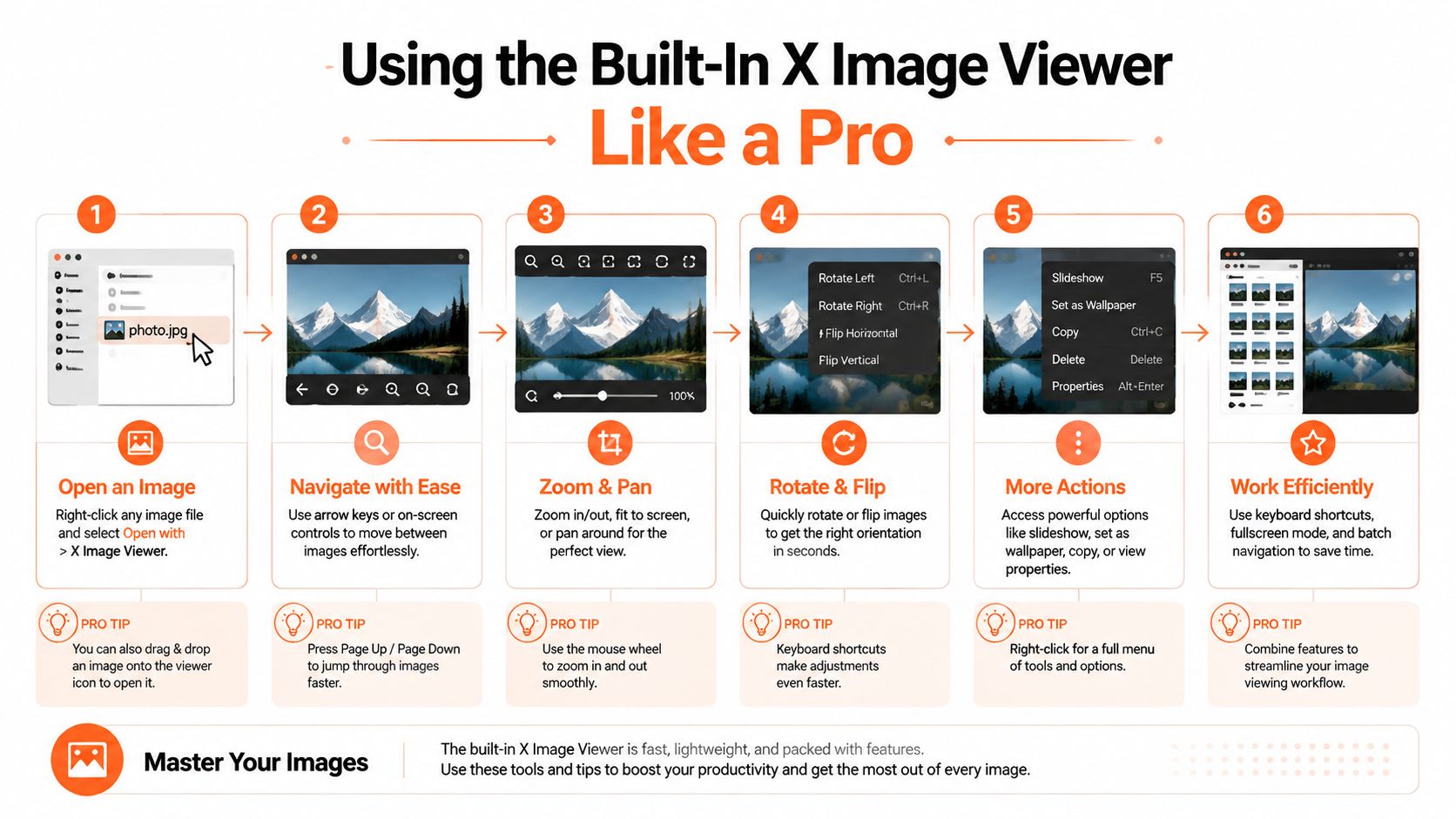
The native viewer is the quickest place to start when you only need a close look at an image. Silicon Republic reported that X's expanded-tweet pop-up gives you a large image view and lets you scroll through the account's media gallery inside the overlay, which is easier than opening every image in a separate tab. That matters most with multi-image posts, because you stay in the same thread and move through the set without losing your place.
A good way to approach it is to treat the viewer as the first layer of access. If the image already opens clearly there, you may not need anything else. If the preview looks cropped, fuzzy, or smaller than expected, that does not always mean the image itself is bad. It often means you are still looking at the feed thumbnail instead of the fuller pop-up view.
How to use the viewer without fighting it
Open the post, then click the image instead of relying on the feed thumbnail. The feed preview is often smaller and more aggressively cropped, while the pop-up usually serves a better view. If the post has multiple images, use the overlay gallery to step through them one by one instead of backing out after every click.
On mobile, the same idea applies. If a post looks fuzzy in the timeline, tap into the larger view before deciding the image quality is poor. X's current analytics and viewer surfaces are built around post-level interaction, not just broad account totals, so the image viewer is the right place to inspect how a specific post is presented.
When the built-in viewer is enough
It is enough when you want to do one of three things:
Check composition before sharing or saving.
Read text inside a screenshot without opening extra tools.
Move through a small gallery in a thread or multi-image post.
Open the larger view first, then decide whether you need to download anything.
That small pause saves time. A lot of people jump straight to external tools when the native viewer already shows what they need. If the image is readable there, use it. If not, then the next layer makes sense.
The built-in viewer has a clear limit. It helps you inspect and browse, but it does not reveal hidden originals by itself. Use it as the front door for quick checks, then move to the media URL or browser-level inspection only if you need the file at a higher quality.
The name=orig Trick and DevTools for Full-Resolution Downloads
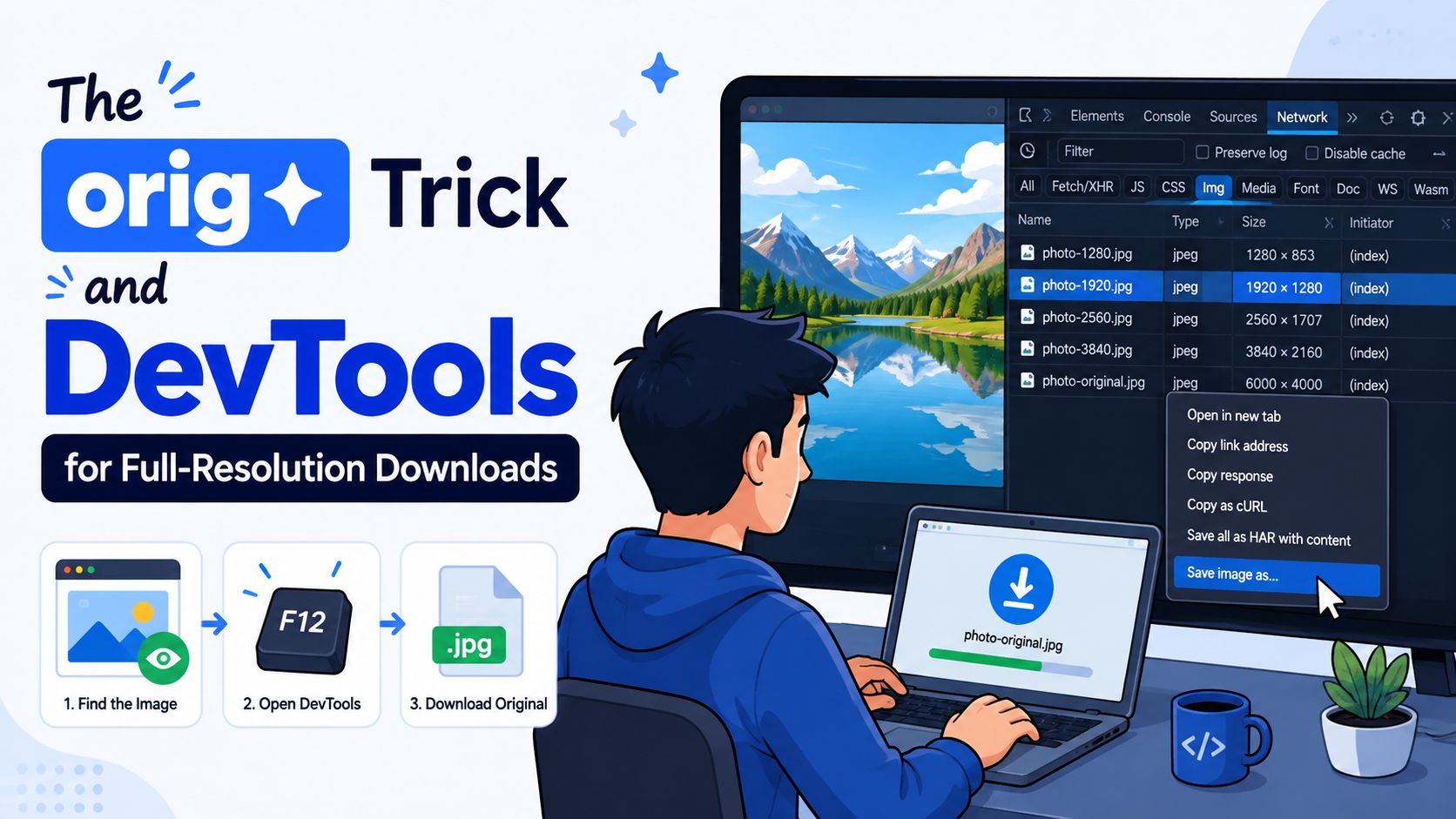
If you want the cleanest file X will serve, the fastest test is usually to open the media URL and swap the size token from small, medium, or large to orig. ReplyWisely explains that if the original asset exists, X will serve the higher-resolution file directly. If it doesn't, the right fallback is not guessing, it's inspecting the actual request in DevTools Network so you're opening the image file, not the page URL. ReplyWisely's image-viewer workflow is useful because it separates the URL test from the deeper debugging step.
Use the URL test first
Start with the image link you already have. Change the size token to orig and load it in a new tab. If the asset is available, that's the easiest route to the original file. If it fails or still looks compressed, don't keep refreshing the same stale page. Reopen the post, force a fresh load, and then inspect the network traffic.
That sequence matters because browser cache and old tabs can keep serving an outdated version. A lot of “it doesn't work” moments are really “the browser is still showing the wrong file.” A private window or a different browser can help you prove that quickly.
Use DevTools when the simple swap fails
Open DevTools, go to Network, and reload the post so the image request appears fresh. Filter by img, identify the actual media request, and open that clean asset URL in a new tab. That's the file you want to save if your goal is archival quality or a chart that needs to stay crisp.
A few practical cases make this worth learning:
A chart with fine labels that looks blurry in the feed.
A product screenshot that has to stay legible for documentation.
An image that loads once, then breaks when you revisit the tab later.
Debugging rule: if the first URL looks like a preview, assume it's a preview until Network shows you otherwise.
That mindset saves time. The platform often exposes resized derivatives first, and the original only appears if the asset exists and the browser asks for it directly. Once you get used to checking the request itself, the rest of the process becomes much more predictable.
Third-Party Viewers and Extensions Worth Knowing

A third-party tool makes sense once the task goes beyond opening a single post image. Some people want a gallery-style view that lines up a public account's photos, videos, and GIFs in one scrollable place, while others only need better control over one image at a time. Twitter Media Viewer fits the first case because it presents attached media in a feed-like layout, which helps when you are scanning a visual archive and do not want to click into every post. Twitter Image Viewer Pro fits the second case because it adds two-finger scroll for moving through images, Ctrl+scroll for zooming, arrow keys for switching between images, and +, -, 0, and ESC shortcuts for zoom, reset, and close. The Chrome Web Store listing for Twitter Image Viewer Pro lays out those controls clearly.
A viewer built for browsing is useful when you are comparing posts one by one. A gallery tool is better when the account itself is the thing you are examining, because the layout shows patterns faster than opening each tweet separately. For a broader page-level view, SupaBird can also help if your workflow is closer to creator research than to simple image viewing.
Pick tools by job, not by hype
If you are checking one thread, an extension with keyboard shortcuts usually gives you enough control without adding extra steps. If you are reviewing a public account's media archive, a gallery viewer can feel easier because it organizes the content like a media tab instead of a timeline. If you are handling larger-scale extraction, API-based media enumeration is the more practical route. That means fetching tweets, reading the tweet entities for attached media URLs, moving through pages past timeline limits, and downloading each file from the links you receive. The Sorsa technical write-up on Twitter image scraping describes that process as a two-step job, first discover the media URLs, then download the files.
Each option comes with a trade-off. Extensions are convenient, but they depend on the browser and can stop working when X changes how it renders media. Viewer pages are light and quick, but they usually only help with public content. API-based workflows scale better, but they are more setup than a casual browser session needs.
A simple comparison
Tool type | Best for | Main trade-off |
|---|---|---|
Native viewer | Quick inspection | Limited control over the file |
Extension | Zooming and keyboard browsing | Browser dependency |
Gallery viewer | Scanning public media archives | Usually narrower than full platform access |
API-based extraction | Large public collections | More setup and stronger compliance needs |
Format support can matter more than it first appears. Twitter Image Viewer Pro says it keeps PNG/JPG format intact, which helps if you are checking screenshots or charts that should not be converted on the way out. For repeat work, that kind of detail can matter more than a flashy feature list.
If your job is both viewing and creator research, a tool like SupaBird can be useful because it adds post-finding and creator analysis features for discovering high-performing posts in a niche. That is not a picture viewer in the narrow sense, but it is relevant when the goal is finding visual patterns worth studying.
Mobile and Guest Access Workflows That Work
On mobile, the image itself is usually not the hardest part. The harder part is the mix of a small screen, a login redirect, and a browser that does not show the media view the way you expected. Start with the public profile in a mobile browser, then move to the media tab instead of depending on the in-feed preview. If X pushes you toward a login wall, try a different browser or open a private window, because either one can sometimes bring back guest view long enough to inspect the post.
Guest access is useful, but it has limits
Guest viewing is a partial path, not full access. Public posts may open, protected accounts will not, and media rendering can change depending on whether X wants you signed in. That is why broad claims about browsing everything without login tend to break down in practice. A better mental model is that guest access can reach some public media surfaces, but not all of them, and not with the same consistency every time.
For mobile-only workflows, a few habits usually make the difference between a dead end and a usable view.
Open the profile in a browser, not only in the app.
Use the media tab to find image posts faster.
Save from the largest visible view so you do not keep the thumbnail.
Try another browser or private window if a public post redirects to login.
Public viewing can still work, but X can change access rules or media rendering behavior and make the same post behave differently from one session to the next.
A simple fallback plan helps here. A browser on iPhone or Android can behave differently from the app, and that difference is often enough to get the image open when the app view stalls.
Saving without losing quality
If you are saving a screenshot or a shared image on mobile, the main goal is to avoid capturing a small preview when a larger version is available. Open the expanded view first. After that, save from there if the device gives you the option, or share the direct image link into a browser that can load the file cleanly.
The same logic applies when you are searching before you save. A clean mobile search flow can save time if you want to find the right post first, especially on a phone where scrolling is slow and the preview is easy to miss. This guide to advanced search on mobile lays out that workflow in a way that fits guest browsing and mobile searching together. If you are also checking your own data handling, the privacy practices at Lumi Humanizer are a useful reference point for how personal content and access choices are handled.
Privacy, Legal, and Rate-Limit Considerations

A twitter picture viewer can make a public image easy to open, but access is only one layer of the problem. A post may be visible, yet the image can still be covered by copyright, platform rules, or both. The same file can also behave differently depending on whether you are logged in, using guest access, or pulling it through a browser or a third-party view. That is why the line between viewing and extracting matters.
Public access is not the same as unrestricted use
A public image can be visible and still be protected by copyright or platform rules. Separate three questions before you act: can you view it, can you save it, and can you reuse it somewhere else. Those answers are not always the same, and the difference gets sharper once you move between logged-in access, guest viewing, mobile, and desktop.
X's own help materials, along with broader reporting on access changes, show that visibility depends on account state, permissions, and shifting access rules. If a post stops loading in a guest browser, that is not just a broken page. It often means the access path you are using no longer reaches the media in the same way.
If you want a compact reference on responsible handling of user data and personal content, privacy practices at Lumi Humanizer is a useful general read because it treats privacy as a product and process issue, not only a policy page.
Keep rate limits and platform behavior in mind
Heavy browsing and repeated extraction can trigger X's anti-abuse systems, which may slow down or block suspicious traffic. That matters more once a workflow starts feeling like automated checking instead of normal viewing. If you need repeat access, keep it focused on public material, space out requests, and avoid hitting the same endpoints over and over.
Deleted or vanished posts create a different problem from guest blocks or broken image loading. For that case, this guide on viewing deleted tweets explains the boundary more clearly. A missing post, a blocked guest session, and a deleted image can all look similar on the surface, but they fail for different reasons.
The safest rule is simple. Use the least invasive method that solves the job, keep your use personal unless you have permission, and assume platform access behavior can change at any time.
Your Decision Framework and Creator Next Steps
The cleanest decision tree is this. Try the built-in viewer first, use the name=orig swap when you need the file itself, open DevTools Network when the first URL is only a derivative, and reach for third-party viewers or extensions when browsing speed or gallery navigation matters more than staying inside X. That sequence matches the way X serves media, and it keeps you from overengineering a simple lookup.
For creators, this isn't just about saving images. It's about learning how visuals show up in the feed, how crops affect readability, and which formats hold up when you inspect them closely. A good twitter picture viewer workflow helps you study competitors, archive your own assets, and spot why one post earns attention while another gets passed over.
The best habit is to match the tool to the task. Use the fastest native option for casual viewing, the browser for precision, and a third-party tool only when the workflow clearly benefits from it.
If you want a more systematic way to study what performs on X, SupaBird helps creators find strong posts, analyze proven formats, and turn that research into better ideas. Visit SupaBird if you want a workflow that connects image research with posting, engagement, and growth on X.

How Developer Startups Build a Brand on X Before Launch

30-Day Starting Plan for New X (Twitter) Accounts

How Often Should You Tweet for Maximum Growth?

What Should Your First 10 Tweets Be About?

How to Run X for Ten Clients: The Agency Workflow

How to write a bio that gets people to follow you

Digital Product Launch Strategy

Best Twitter Growth Service for Creators in 2026
From X to Every Platform: Repurpose Without Flopping
