How to Make My Twitter Account Private on Mobile and Web
Author:

You're usually in one of two situations when you search how to make my Twitter account private. Either you want a cleaner boundary because strangers are watching more closely than you'd like, or you've realized some older posts, replies, and media could create problems if they stay fully public. Both are common, especially for creators who use X for visibility one month and want tighter control the next.
The good news is that X still gives you a native way to lock things down. The catch is that privacy on X isn't just a toggle. It changes how people find you, how follower requests work, what outsiders can see, and how much discoverability you give up in exchange.
Table of Contents
Why Protecting Your Tweets Matters and What You Need
Protect your Tweets is still the only native X setting that restricts your posts to approved followers. When it's enabled, your profile shows a lock icon and the public message “This account's posts are protected”. Protected tweets are also excluded from public search, which means they won't show up in Google or X search, and public likes and retweets stop being visible to outsiders. X also cuts off discovery routes that public creators normally rely on, including trending topics, hashtag feeds, and algorithmic recommendations, which limits reach to people you've already approved as followers, as outlined in this guide to making a Twitter account private.
That trade-off matters more than one might initially assume. If you're a private individual, it's usually worth it. If you're a creator, consultant, founder, or job seeker, the decision is less about “privacy good, public bad” and more about whether you want a gated audience or broad discovery.
What you need before you switch
Have these ready before you touch the toggle:
Your login access: Make sure you can log in without friction, especially if you use two-factor authentication.
A stable device: Use the phone or desktop browser you already trust for account settings.
A quick plan for old posts: Protecting future visibility helps, but older public material can still matter in reputation terms. If you're worried about hiring risk, public scrutiny, or past jokes taken out of context, this guide on assessing risk from old tweets is worth reading before you make changes.
Your privacy checklist: If you want a broader look at account-level controls, X users often start with a Twitter privacy settings overview.
Practical rule: Don't turn on account protection casually if you depend on public replies, searchable posts, or inbound audience growth. Use it when control matters more than discovery.
What the lock actually means
The lock icon isn't decorative. It tells visitors they can see your basic profile shell, but not your protected posts unless you approve them.
That approval step changes your workflow. A founder sharing internal build notes with a small investor circle may want that friction. A niche creator running a paid-adjacent private community may want it too. A public educator trying to grow through searchable threads usually won't.
Protect Your Tweets on Mobile
Mobile often provides the fastest path. The setting is available in the X app on both iPhone and Android, though labels can shift slightly depending on the app version.
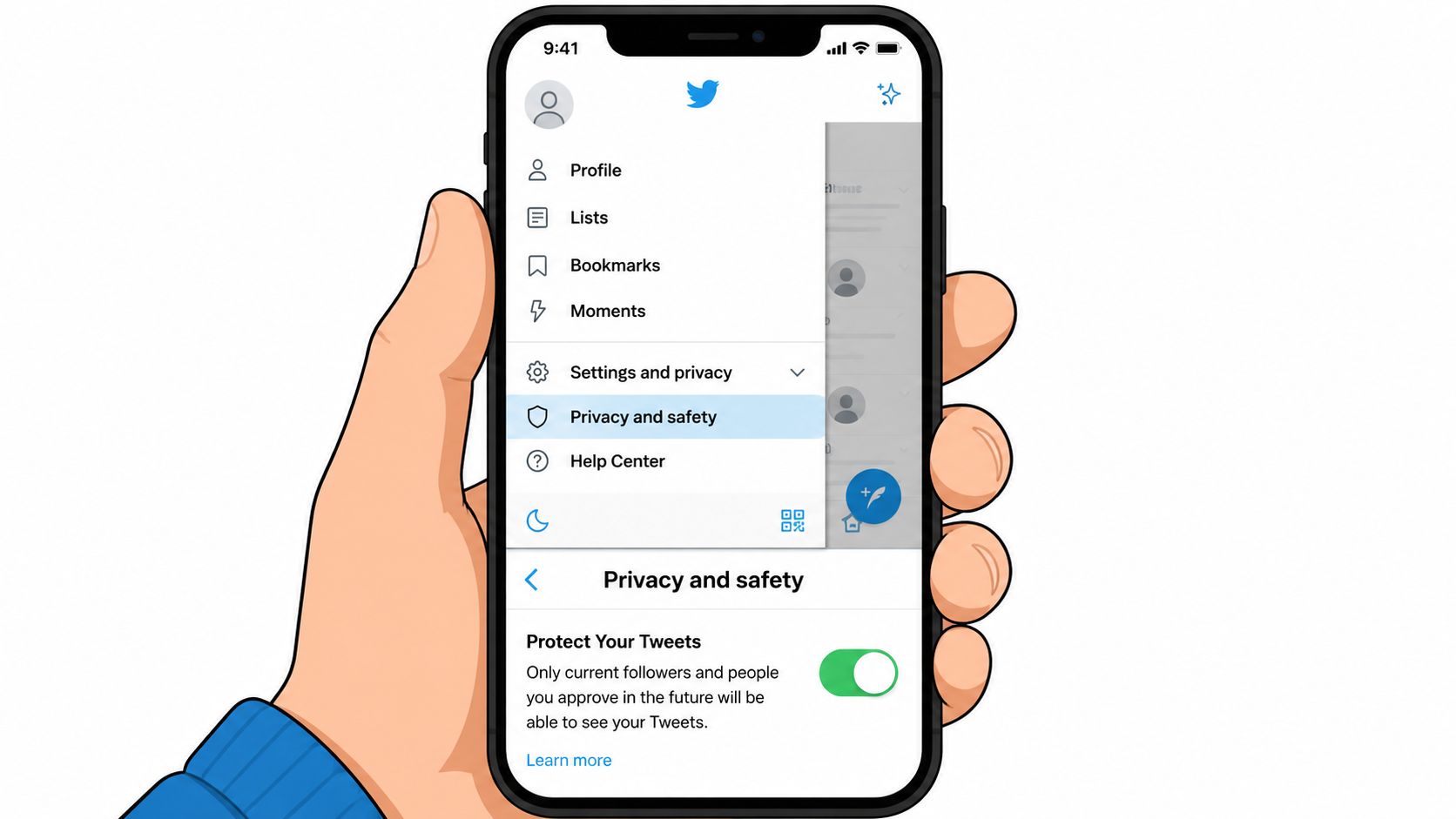
Find the right setting on iPhone and Android
Open X and tap your profile icon. Then go to Settings and privacy, open Privacy and safety, and look for Audience and tagging. Inside that menu, turn on Protect your posts or Protect your Tweets, depending on the label your app shows.
The path is usually straightforward:
Open your profile menu
Tap Settings and privacy
Select Privacy and safety
Open Audience and tagging
Enable Protect your posts
If you're checking this on Android and don't see the exact wording, don't panic. X has a habit of moving labels around without changing the underlying setting. What you're looking for is the account visibility toggle tied to post protection.
What to expect after you switch it on
Once you enable it, new follower relationships stop being automatic. People now need approval before they can see your protected posts.
That matters in practical situations:
If you're a creator taking a break from public posting: You can keep sharing thoughts with existing approved followers while closing the front door to everyone else.
If you're dealing with harassment or unwanted attention: This slows access immediately because non-followers can't browse your feed freely.
If you're testing a private audience model: You can manually curate who gets in.
A private account isn't “hard to find.” It's easy to find, but hard to access.
Before you leave the app, visit your profile once and look for the lock indicator. If it doesn't appear, back out and reopen the setting. Sometimes the UI needs a moment to refresh.
If you want a visual walkthrough before doing it live, this short video follows the same mobile flow:
One last practical note. You don't need to repeat the process on every device. Once the account is protected, the setting applies across your logged-in sessions.
Protect Your Tweets on Desktop
Desktop is better when you want to move carefully, compare tabs, or verify everything with a full view of the settings menu. If you manage multiple profiles, it's also easier to confirm you're changing the right account.
Follow the web settings path
Log in to X on your browser and use the left-side navigation. Click More, then Settings and privacy. From there, open Privacy and safety, choose Audience and tagging, and enable the checkbox or toggle for Protect your posts.
The sequence on desktop usually looks like this:
Step | What to click |
|---|---|
1 | More |
2 | Settings and privacy |
3 | Privacy and safety |
4 | Audience and tagging |
5 | Protect your posts |
X may ask for a confirmation click after you check the box. Approve it, then refresh your profile page to confirm the account shows as protected.
If you're new to setting up an account in the first place, this walkthrough on how to create a Twitter account is useful before you start managing privacy settings.
Desktop checks that prevent mistakes
Browsers don't change the setting itself, but they can affect how clearly you see the confirmation state. In Chrome, Firefox, and Safari, the menu wording is usually the same. The main difference is whether the confirmation pop-up appears centered or as a side prompt.
Here's what I'd verify on desktop before signing off:
The toggle stayed enabled: Some people click away before the confirmation saves.
You're on the correct account: This matters if you manage a personal profile, brand account, and alt from the same browser.
The profile reflects the change: Open your public-facing profile view and check for the lock icon and protected-post message.
If the desktop toggle looks on but your profile still looks public, log out, reload the page, and view the profile while signed out or from another browser.
Desktop is also the better place to do follower cleanup. You can review bios, avatars, and recent activity more comfortably before deciding who gets access.
Verify Privacy Settings and Approve Followers
Turning on protection is the start. The main work is confirming the settings that affect media and deciding how you'll handle follower approvals.
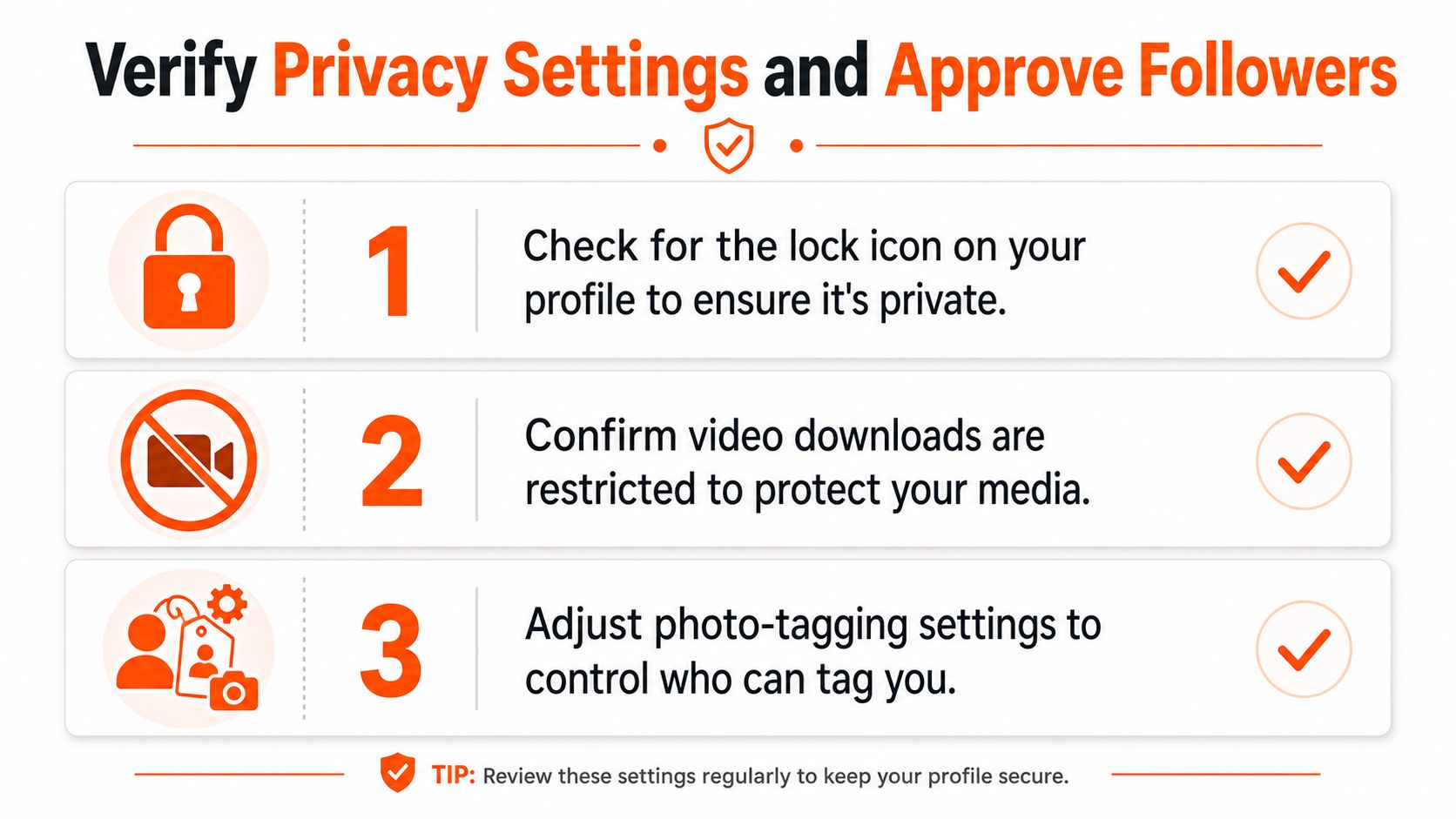
Run a quick privacy check
Start with the basics. Visit your profile and confirm the lock icon is visible. Then open the same privacy area and verify your media settings. A documented privacy mechanic tied to post protection is that videos are automatically protected by default to prevent others from downloading them, and users can verify this by enabling protect your videos alongside the main protection toggle, as noted in this video privacy explanation.
That's worth checking if you post clips, product demos, or personal footage. Many users focus on tweet visibility and forget that media settings need a separate glance.
Use this checklist:
Lock icon visible: Your profile should clearly show it's protected.
Video protection confirmed: Especially important if you publish original clips.
Photo tagging reviewed: If you don't want people associating your profile with random images, turn tagging off or tighten it.
Follower requests visible: The pending queue should appear once protection is active.
If you're curious how automation tools intersect with follower management behavior, this article on Twitter auto-follow bot patterns gives useful context on why request quality can be uneven.
Handle follower requests like a creator, not just a user
Approval isn't just a privacy step. It's audience design.
A simple approach works well:
Approve known people fast: Friends, colleagues, clients, collaborators.
Pause on low-signal accounts: Empty bios, no profile photo, or repost-heavy feeds with no context.
Decline mismatch accounts: If you're using a private account for a niche peer group, a random mass-follow account doesn't belong inside.
For example, a consultant sharing client-safe behind-the-scenes thoughts may approve peers and past clients, but decline anonymous novelty accounts. A creator using private mode for draft feedback may approve active followers who already engage constructively on other platforms.
Trust the pattern, not the request. A polished avatar means less than a consistent posting history.
Troubleshoot Privacy Issues
Most privacy problems on X come from one of two things. Either the setting was enabled but never fully verified, or the account owner assumed protection would clean up older public content automatically.
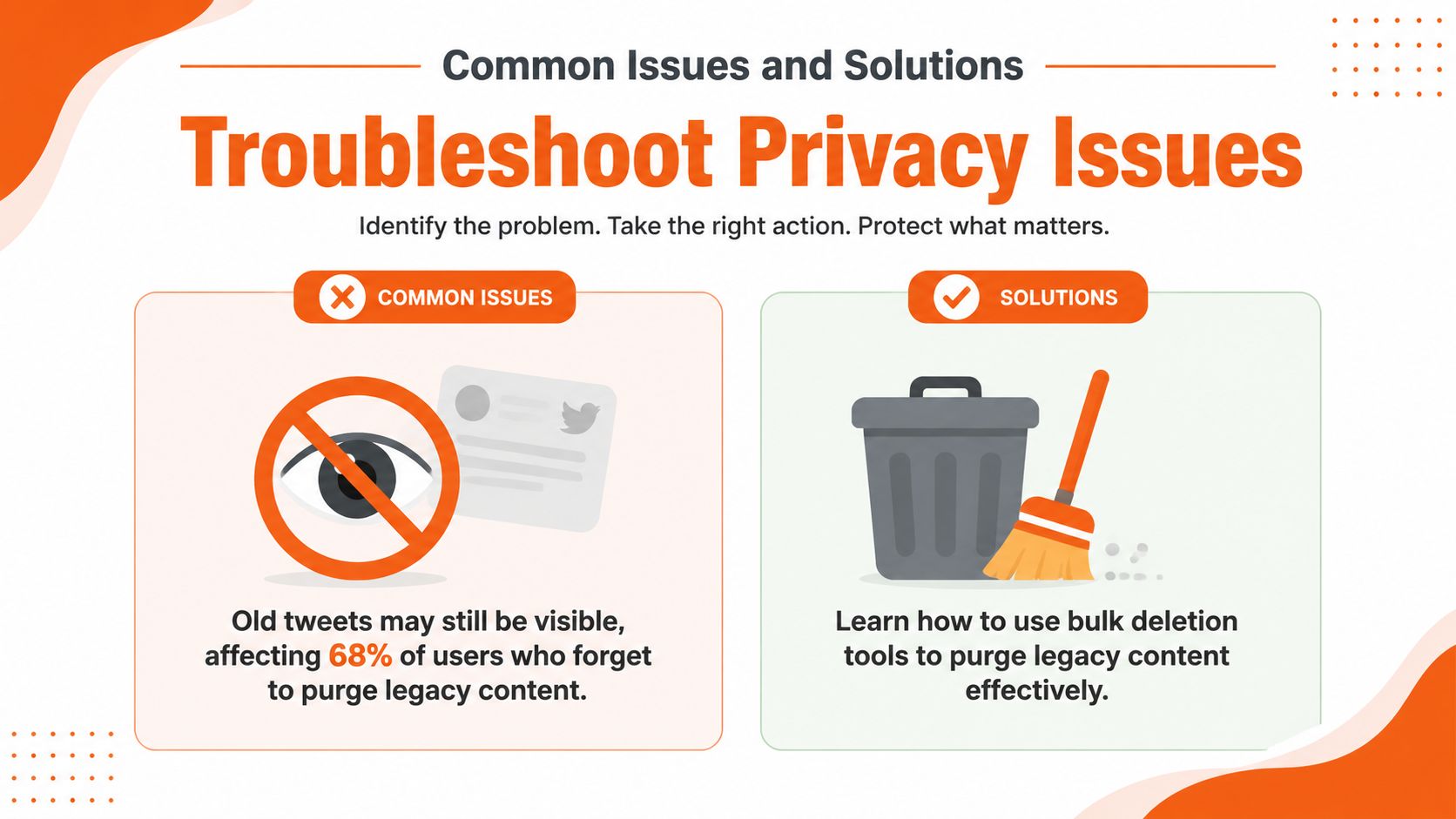
Fix the problems people notice most
One verified point matters here. Once protection is enabled, new protected content is excluded from public indexing systems with a documented 100% success rate in blocking non-follower access to new tweets, but tweets posted before enabling protection can remain visible unless you manually delete them or use bulk deletion tools, a pitfall affecting approximately 68% of users who enable protection without purging legacy content according to this technical overview of protected tweet behavior.
That leads to a simple symptom-cause-fix list:
Your old tweets still show up
Cause: Protection didn't retroactively erase legacy visibility.
Fix: Review and delete older posts manually or with a bulk deletion tool.
The lock icon isn't showing
Cause: The setting didn't save, or you're viewing the wrong account.
Fix: Reopen privacy settings, confirm the toggle, then reload the profile.
Someone can still tag you in photos
Cause: Account protection doesn't automatically solve every tagging setting.
Fix: Open photo tagging controls and restrict or disable them.
When your setup looks private but still leaks context
A profile can be technically protected and still reveal more context than you intended through bio details, profile photos, follower approvals, and old media you forgot to remove.
A practical cleanup pass should include:
Audit your visible profile shell
Your name, handle, bio, and profile image still frame how strangers interpret the account.Review legacy media
Old visuals often carry more context than text alone.Test from the outside
Check your profile while signed out or from a different account so you see what strangers see.
If you care about privacy for professional reasons, don't stop at the toggle. Old posts are usually where most exposure sits.
Balancing Privacy and Visibility as a Creator
Creators usually struggle with one question more than the settings themselves. If you lock the account, are you protecting your work or shrinking your future audience?

What privacy gives you and what it costs
X's 2024 privacy update changed the visibility of likes across the platform. Only you can see the posts you've liked, and other users, including followers, can no longer view your Likes tab. The update applies globally, and when that sits on top of a protected account, your broader activity layer becomes invisible to the public, as described in this explanation of hidden likes on X.
For private users, that's a win. For creators, it cuts off a subtle discovery engine. Public likes, visible interactions, and accessible activity often help people understand what you're about before they decide to follow.
Here's the practical trade-off:
If you choose privacy | If you choose visibility |
|---|---|
You control who sees your posts | New people can discover you more easily |
Your activity is harder for outsiders to map | Your profile builds public proof faster |
Your audience becomes more curated | Your audience becomes broader and less filtered |
If your priority is safety, confidentiality, or a tighter circle, protected mode makes sense. If your priority is inbound reach, social proof, and conversation-led growth, a public profile usually performs better.
For creators focused on profile conversion, your public-facing packaging matters even more. A strong Twitter X bio that gets you more followers can do more work when your account stays open.
A practical way to choose the right setup
Use private mode when:
You share personal updates: Friends-and-trust-circle content works better behind approval.
You're under unwanted scrutiny: Protection creates immediate friction for outsiders.
You're running a gated community feel: Some creators prefer depth over scale.
Stay public when:
You grow through searchable threads and replies
You need inbound discovery from strangers
You use X as a top-of-funnel channel for consulting, SaaS, or content
Private accounts are better for controlled conversations. Public accounts are better for compounding attention.
A middle-ground approach often works best. Keep your main creator profile public, tighten reply permissions and tagging where needed, and reserve a second account or private list-style workflow for sensitive discussions. That gives you reach without putting every thought into the open.
If you want to grow on X without guessing what to post, when to publish, or which conversations deserve your replies, SupaBird is worth a look. It helps creators turn rough ideas into stronger posts, find relevant engagement opportunities, stay consistent with scheduling, and get AI-assisted coaching that's built specifically for X.

The Reply Guy Strategy: A Growth Guide for X

Why New X Accounts Get Less Reach

ClimbX Review (2026): Features, Pricing, Pros and Cons

How Developer Startups Build a Brand on X Before Launch

30-Day Starting Plan for New X (Twitter) Accounts

How Often Should You Tweet for Maximum Growth?

What Should Your First 10 Tweets Be About?

How to Run X for Ten Clients: The Agency Workflow

How to write a bio that gets people to follow you
