How to Find Twitter Drafts: The Ultimate 2026 Guide
Author:

That half-written post usually goes missing at the worst time. The hook was strong, the thread was nearly done, and then X got closed, the account changed, or the draft stopped showing up. Users often look in the wrong place first, which makes a normal storage quirk feel like content loss.
The good news is that finding drafts on X is simple once the storage logic is clear. The better news is that the same logic explains why drafts seem to disappear, and it points to a workflow that prevents repeat losses. Anyone trying to learn how to find Twitter drafts needs both parts, not just the taps and clicks.
Table of Contents
You Wrote the Perfect Tweet Now Where Is It
You save a post on your phone between meetings, open X later on your laptop, and it's gone. That usually feels like an app bug. In practice, it's a storage problem. X does a poor job explaining where drafts live, so people check their profile, settings, bookmarks, and even old tabs before looking in the one place that matters.
The key detail is simple. Drafts are not treated like a shared content library across every device. They often stay tied to the app session or device where you started writing. Anyone trying to find their Twitter drafts needs to understand that part first, because the missing draft is often sitting exactly where it was created, not following the account everywhere you log in.
Practical rule: If a post matters, treat “saved” as temporary until you've copied it somewhere you control.
Creators who already know how to find Instagram drafts will recognize the pattern. Social platforms make draft saving feel universal, but the storage logic usually isn't. That gap is why a draft can appear safe in the moment and still disappear the second you switch devices, clear an app, or lose a browser session.
There's another layer experienced operators pay attention to. Recovering the draft is only half the job. Before I publish anything that stalled in drafts, I tighten the opening line, because weak hooks are one reason good ideas underperform. If you want a cleaner process after recovery, this guide to writing stronger hooks for X posts is worth keeping in your workflow.
The smarter takeaway is not just where to tap. It's why drafts go missing, and how to stop relying on X as your only place to store publish-ready copy.
Finding Your Drafts on the X Mobile App
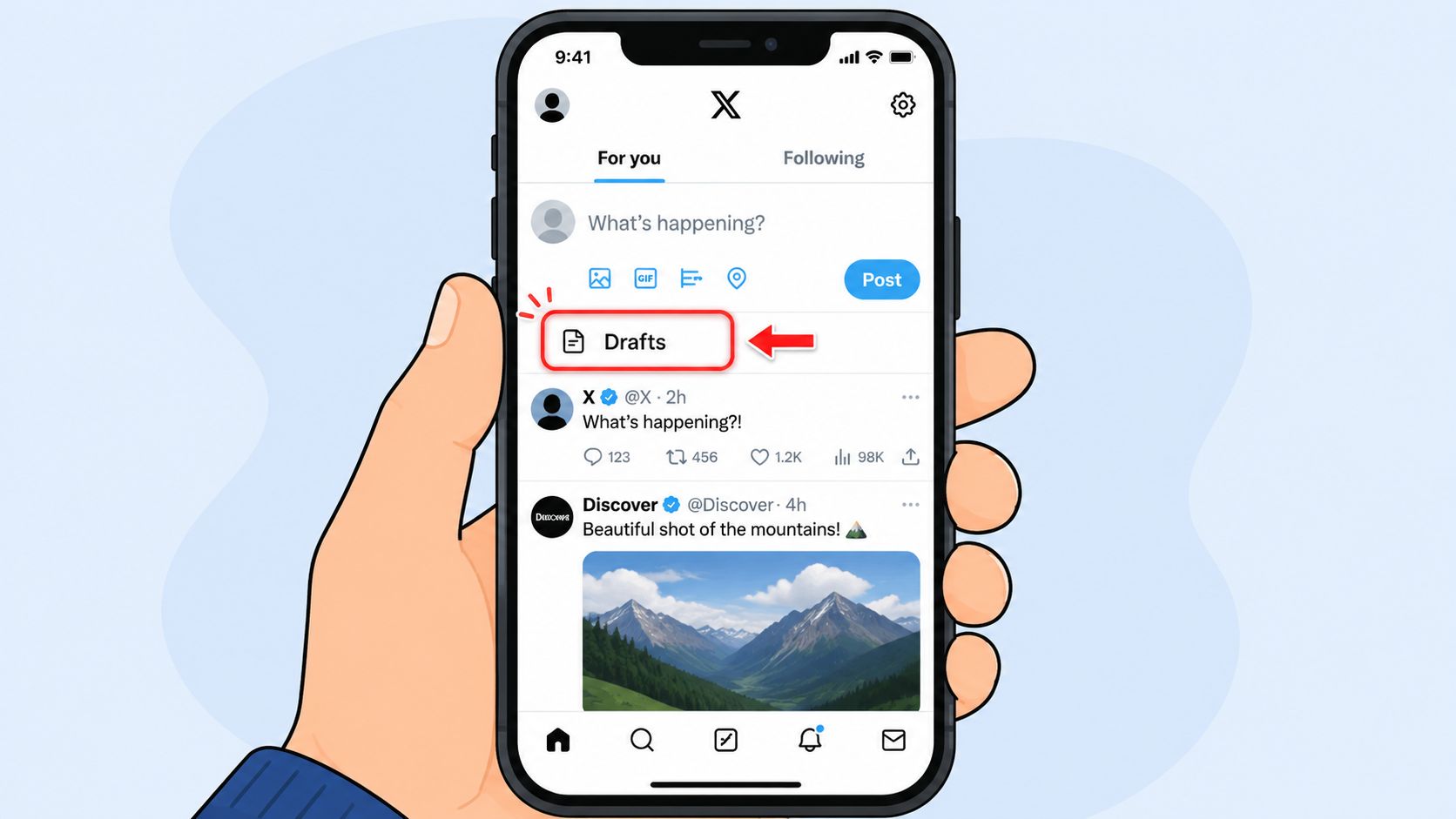
For most users, mobile is where drafts live. The path is short, but X doesn't make it obvious because the button only appears when at least one draft exists.
The exact mobile path
To find drafts on mobile, use this sequence:
Open the X app and stay on the home screen.
Tap the blue + compose icon.
Look at the top-right corner of the composer.
Tap Drafts if it appears.
That exact sequence has a 98% success rate across iOS and Android versions, according to Postful's mobile draft walkthrough.
The common mistake is searching in settings, profile menus, or account pages. Drafts aren't stored there. They sit behind the composer itself, which is why the button only shows up after the compose window opens.
What the Drafts button actually means
The Drafts label is conditional. If it doesn't appear, that usually means one of two things: there are no drafts saved on that device for that account, or the app hasn't surfaced the draft list yet.
A quick practical example helps. Say a founder writes the outline of a launch thread during a commute, saves it, and comes back that evening. The right move isn't to open the profile or search old activity. The right move is to tap +, then Drafts, and continue editing there.
This short demo shows the mobile flow clearly:
For people who publish heavily from mobile, it also helps to learn adjacent features that save time while staying in-app, like using Twitter advanced search on mobile to find older conversations, replies, and reference posts before finalizing a draft.
The mobile composer is the source of truth for mobile drafts. If the draft was created on that phone, that's where it should be checked first.
Locating Unsent Posts on the X Website
Desktop works differently, and X uses different language there. On the web, the feature is usually labeled Unsent Posts, not Drafts.

Where web drafts live
To retrieve an unfinished post on x.com, click the blue Post button in the left navigation. That opens the composer pop-up. In the top-right area of that pop-up, look for Unsent Posts.
That's the correct web path, and it matches the method described in SuperX's desktop guide. The same source also notes the most important limitation: drafts created on mobile devices are not synced to the web interface.
A simple comparison makes this easier to remember:
Platform | Label | Where to open it |
|---|---|---|
Mobile app | Drafts | Top-right of the mobile composer |
X website | Unsent Posts | Top-right of the web composer pop-up |
What breaks web drafts
Web drafts are fragile because they depend on the browser session. They aren't a reliable archive.
These situations commonly wipe them out:
Browser cleanup: Clearing cache or session data can remove unsent web content.
Logging out: Session-linked drafts may disappear after sign-out.
Browser switching: A post started in Chrome may not appear in Safari or Firefox.
A practical example: a marketer starts a client post in Chrome during work hours, closes the browser, then opens X later in another browser expecting the draft to be there. It won't be. The browser context changed.
That's why desktop drafts are best treated as temporary scratch space. They're useful for a short pause, but not for anything valuable enough to lose.
The Real Reason Your Twitter Drafts Suddenly Disappear
Drafts on X are stored by device, browser, and account context. They do not live in one shared, cloud-synced folder. That design choice causes nearly every "missing draft" complaint I see.
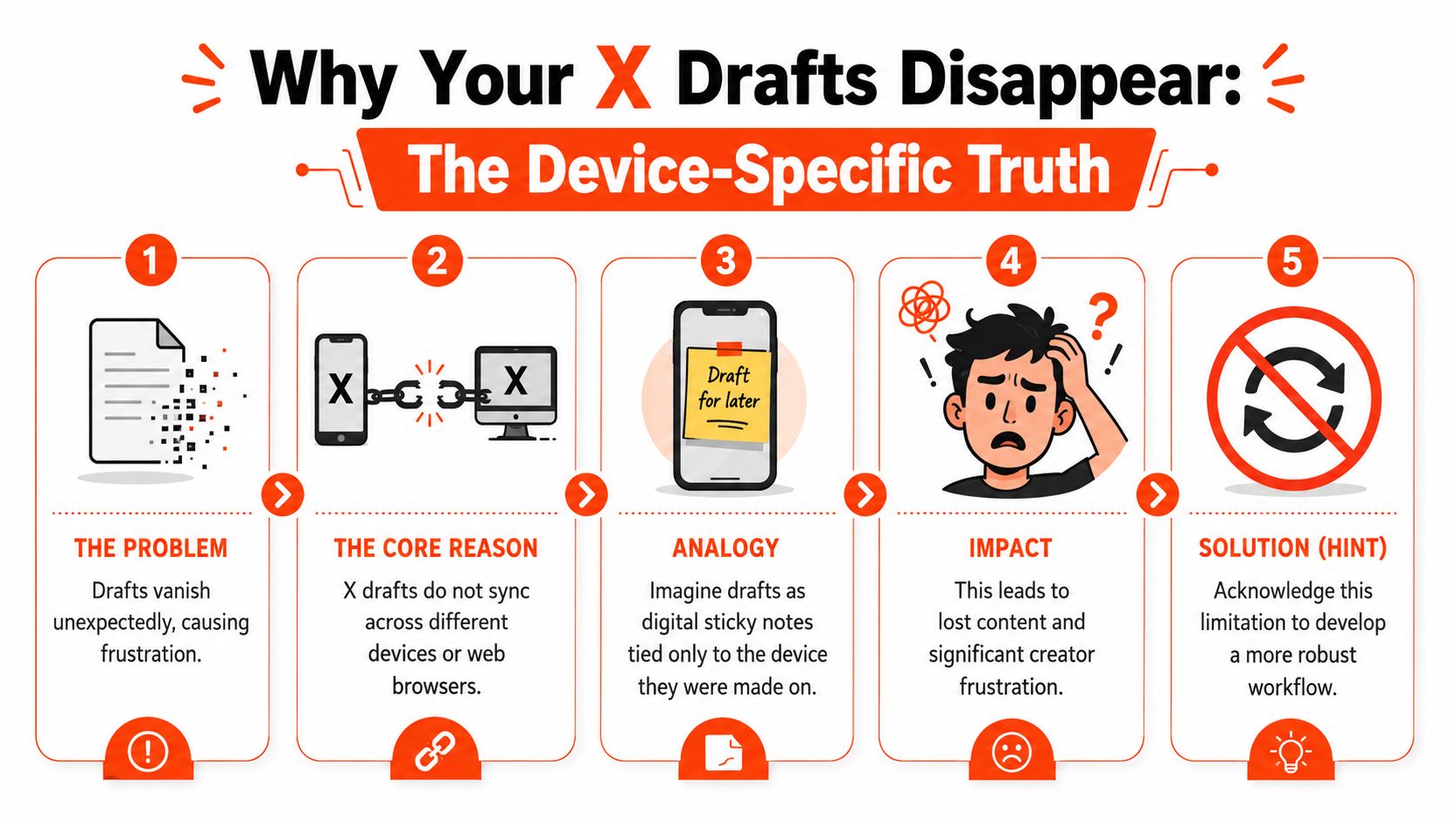
A draft written on an iPhone stays tied to that iPhone. A draft started in Chrome usually stays tied to that browser session. If you switch devices or browsers, X often looks empty even though the draft still exists somewhere else.
A missing draft is usually a location problem, not a deletion problem.
That distinction matters because it changes how you troubleshoot. If the post was created on mobile, check that same phone first. If it was created on desktop, go back to the same browser, on the same machine, while signed into the same account.
Creators run into this constantly. Someone writes a strong post during a commute, saves it in the app, then opens x.com later expecting to polish and publish from a laptop. Nothing shows up under Unsent Posts. X did not pull the draft across because mobile and web use separate storage contexts.
The same thing happens on desktop in a different form. Start a post in Chrome at work, close the tab, then try to find it later in Safari at home. Different browser, different storage bucket.
Three checks solve most draft hunts:
Return to the original device: Use the same phone, tablet, or computer where the draft was created.
Use the same browser: Web drafts often stay tied to the browser session that saved them.
Confirm the same account: Multi-account users regularly search in the wrong profile and assume the draft vanished.
Once you understand that behavior, the smarter move is to treat X drafts as temporary holding space, not a content library. For posts you may reuse, revise, or turn into a thread later, keep a master version outside X and use a template-based content workflow for faster creation.
Basic tutorials stop at "tap here" or "click there." That helps you open the drafts folder. It does not explain why recovery fails after a device switch. This is the part that saves time, because once you know drafts are local, you stop searching in the wrong place and start building a workflow that does not depend on X remembering everything for you.
Proactive Tips for Never Losing a Draft Again
Once the local-storage limitation is clear, the smartest move is obvious. Stop treating native X drafts like long-term storage.
Build a safer capture system
A safer workflow starts in a cloud-synced notes app. Apple Notes, Notion, Google Keep, and similar tools are better homes for anything that would be painful to rewrite.
That changes the role of X drafts completely. Instead of acting like a vault, the draft area becomes a short-term staging lane for posts that are close to publication.
A practical setup looks like this:
Capture raw ideas in Notes: Save hooks, thread outlines, replies, and product angles in one cloud-synced place.
Draft the final version in X later: Move the post into X when timing, media, and links are ready.
Keep the master copy outside X: If the app crashes or the draft disappears, the original still exists.
Simple habits that reduce draft risk
Writers who post consistently usually rely on routine, not luck. A few small habits prevent most losses.
Use distinct opening words: Start drafts with memorable phrasing so they're easier to identify later.
Review saved drafts weekly: Delete dead ideas, finish strong ones, and move evergreen concepts into a proper system.
Avoid storing versions only in-app: If a thread goes through multiple rewrites, keep those versions in a notes tool where changes are easier to track.
For teams trying to move faster, reusable structures help too. A library of frameworks, promotions, launch formats, and reply templates reduces the need to build every draft from scratch. In this context, content templates for faster creation become useful, especially for founders and marketers who publish in recurring formats.
Native drafts are good for capture speed. They aren't good at preservation, version control, or cross-device access.
A Smarter Workflow for Managing X Drafts
You write a strong post on your phone during a commute, tweak it later on desktop, then open X again and realize the version you wanted is gone. That is not a writing problem. It is a storage problem.
A notes app helps, but once you are managing launch posts, thread variants, replies, and scheduled content, copy-paste turns into friction. Native drafts were built for short-term holding, not for running a repeatable content process.

Where native drafts stop being useful
In practice, X drafts break down in three places:
Device-specific storage: A draft can stay stuck on one phone, browser, or app session.
Poor version control: There is no clean way to label iterations, compare edits, or track which draft is current.
Easy to lose: One wrong tap, one expired session, or one mistaken overwrite can wipe out work.
That loss shows up in user behavior. A 2025 X user survey, summarized in this survey summary, found that 52% of users accidentally deleted drafts they wanted to preserve, and 39% could not distinguish between updated and original draft versions.
What better draft management looks like
A better system treats drafts as working assets. Store them in one place, refine them there, and only move the final version into X when it is ready to publish.
That matters more than it sounds. If you are posting seriously, drafts are not just unfinished tweets. They are hooks, test angles, launch copy, customer proof, thread intros, and replies you may want to reuse later. Keeping all of that inside native X drafts is like storing campaign assets in a clipboard.
A stronger workflow looks like this in practice. Capture the raw idea in a synced content library. Edit and save versions in that same place. Add media, links, and timing once the post is close to publish. Then send the final version to X. That gives you a master copy outside the app, which is the safest way to avoid the device-specific draft problem covered earlier.
For founders, marketers, and lean social teams, a centralized system is easier to maintain than scattered notes and in-app drafts. A useful example is managing all X content in one library, where drafts, variations, and scheduled posts stay visible and organized.
SupaBird gives creators, founders, and marketers a more reliable way to handle X content than native drafts alone. Instead of leaving ideas trapped on one device, SupaBird helps teams capture, refine, organize, and schedule posts from one place so strong drafts don't get lost before they turn into reach.

The Reply Guy Strategy: A Growth Guide for X

Why New X Accounts Get Less Reach

ClimbX Review (2026): Features, Pricing, Pros and Cons

How Developer Startups Build a Brand on X Before Launch

30-Day Starting Plan for New X (Twitter) Accounts

How Often Should You Tweet for Maximum Growth?

What Should Your First 10 Tweets Be About?

How to Run X for Ten Clients: The Agency Workflow

How to write a bio that gets people to follow you
